How to access Whatsapp in web browser?

How do I use WhatsApp Web?

To provide you with a richer communication experience, WhatsApp is now accessible both on your phone and your computer. WhatsApp Web is a computer based extension of the WhatsApp account on your phone. The messages you send and receive are fully synced between your phone and your computer, and you can see all messages on both devices. Any action you take on the phone will apply to WhatsApp Web and vice versa. At this time, WhatsApp Web is available only for Android, iPhone 8.1+, Windows Phone 8.0 and 8.1, Nokia S60, Nokia S40 EVO, BlackBerry and BlackBerry 10 smartphones.
WhatsApp Web is not another WhatsApp account. When you use WhatsApp on your computer and your phone, you are simply accessing the same account on these two devices.

Minimum requirements to enjoy WhatsApp Web

You need to have an active WhatsApp account on your phone.
You need to have a stable internet connection on both your phone and your computer.
You need to use the latest version of Chrome, Firefox, Opera or Safari as your web browser on your computer.

To get started with WhatsApp Web

Visit https://web.whatsapp.com in a Google Chrome browser or any browser.
Update the WhatsApp app to the latest version in your phone.
Choose WhatsApp Web from the menu.
You will see a QR code — scan the code inside of WhatsApp, and you’re ready to go. You have now paired WhatsApp on your phone with the WhatsApp web client.
Your phone needs to stay connected to the internet for our web client to work.
This service is currently available to Android, Windows and Blackberry users.


Note: To avoid data usage charges on your phone, we recommend that you are always connected to Wi-Fi when using WhatsApp Web.

How to create Hotspot on Laptop or System / How to access Internet without Router

How to Use Your Laptop as a Wi-Fi Hotspot 


Yes it’s Possible to use your internet in your any device like ipad, MAC book, Android or any wireless device without Buy any new router. How it is? If your using any Laptop or wireless device machine so it is possible to use your wired Internet connection to turn on in to the Wi-fi router for that we need to use some command on CMD line or another method is using Software tool but after free version we need to buy there pro version.
Method First Command Line

1. Open the command prompt. Using win-kay + R. or search the cmd.
C:\>Netsh wlan show drivers

Output

Below command  verify your laptop supporting Hotspot or Not.

2.  Creating the hotspot network
  C:\>netsh vlan set hostednetwork mode=allow ssid=hotspotname key=password
Output

Note:- ssid you can type your name also and key for your password like your Mobile number or easy for remembering 

3) Start your hotspot
C:\>netsh wlan start hostednetwork
For stop

C:\>netsh wlan stop hostednetwork

4. Last Step is sharing wireless network.
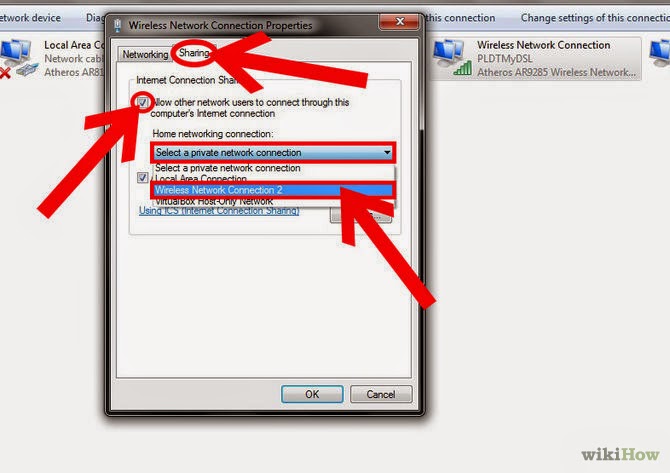
In Run type the "ncpa.cpl". Right click on wireless ico, go to the property after that click on sharing tab and share your wireless connection.


Lenovo k4 note with ANT VR Headset

Lenovo k4 note


OVerarching functions / About Lenovo K4 Note
Processor – Mediatek Octa Core 6753 Processor 64 Bit
RAM – 3 GB RAM.
NFC Support – Yes.
Display – 5.5 inch Full HD Display with 401 PPI.
Fingerprint Scanner mounted at back.
OS – Android Lollipop 5.1 OS with Vibe UI.
Rear Camera 13 Mega-pixel Auto-focus.
Front Camera – 5 Mega Pixel.
Connectivity – Dual Sim with 4G LTE support.
Dual Front Speakers
Battery Capacity – 3300 mAH
Weight – 158 grams
 Price Rs. 11,999

How to Crimp CAT-5 or CAT-6 cable / How to made Network cable

In a LAN or local networking below two types of LAN cable crimping are commonly use.
  1. Straight over Cable
  2. Cross over Cable


Straight over cable and crossed over cable are using commonly in below scenarios and it cost effective compare to other costly cables like fiber optic cables.


For crimping the CAT5 or CAT6 cable we need a below tools.


 Crimping Tool                                                            LAN Tester                                         RJ 45 Jack

Below cable Sequence we can use for Straight cable.


 If your connecting same Network devices you have to crimp the below format cable 
(Cross over).


How To Clear Your DNS Cache

HTML 404 error codes 

Below One of the reason website not opening.

Overview

Your DNS cache stores locations (IP addresses) of webservers that contain pages which you have recently viewed. If the location of the web server changes before the entry in your DNS cache updates, you will be unable to access the site. If you encounter a large number of HTML 404 error codes, you may need to clear your DNS cache. Once you clear your DNS cache, your computer will query nameservers for the new DNS information.

How to clear your DNS cache

The following methods allow you to remove old and inaccurate DNS information that may result in 404 errors.

Windows® XP, 2000, or Vista®

  1. Click the Start button.
  2. On the Start menu, click Run....
    • If you do not see the Run command in Vista, enter "run" in the Search bar.
  3. Type the following in the Run text box: ipconfig /flushdns

MacOS® 10.7

  1. Click Applications.
  2. Click Utilities.
  3. Double-click the Terminal application.
  4. Type the following: sudo killall -HUP mDNSResponder
    • Warning: To run this command, you will need to know the computer's Admin account password.

MacOS® 10.5 and 10.6

  1. Click Applications.
  2. Click Utilities.
  3. Double-click the Terminal application.
  4. Type the following: dscacheutil -flushcache

WinRar file view in jpeg Format

Copy jpeg file in to rar file in binary format


 First find an image with JPG format and a RAR file you need to hide in the image.In this tutorial I assumed your image file name “
TutoEX.jpg
” and the RAR file name is“
TutoEX.rar
”(File names can be any of you desire, you don’t need to rename your files to names I havementioned above)Now go to Windows command prompt (Start>Run>type cmd and press enter)In the command Prompt window type:

copy /b TutoEX.jpg + TutoEX.rar NEWTUTO.jpg

switch “/b” indicates the copy function is binary“
NEWTUTO.jpg
” is the result of image with the embedded TutoEX.RAR (you can choose anyname as you prefer for your New Secret JPG file)

USB Pen Drive Bootable

Free Utility To Make Your USB Pen Drive Bootable

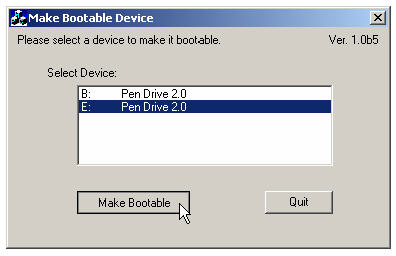
If you are an fairly advanced computer user, at times you may need to boot from devices other then the default hard-disk, mainly to troubleshoot virus infections and other critical operating-system related issues, I had shared tips on how to make bootable cd for performing advance system tasks on windows. Today I will share few utilities enabling you to create bootable USB pen drives with ease, you need to have Motherboard/BIOS with USB boot support for this to work. MakeBootable is an free and simple-to-use utility to make your Pen Drive act as a boot-up disk without erasing any data on the device. It consists of a single executable file and requires no installation, However the utility will only work on USB device's using Phison’s chip solution and FAT file-system only (you can re-format your drives to FAT easily).
Direct Download : Make_bootable.zip (465Kb)
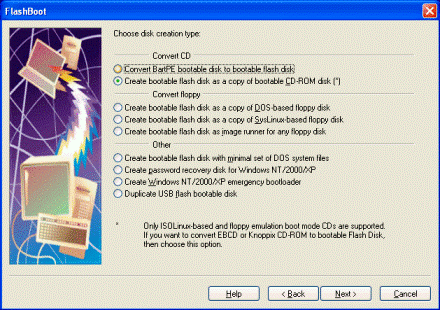
If the above utility fails to recognize your USB drive you can download and use the HP USB Format Utility and HP USB Boot utility, They work with other brands of flash drives as well, The best software for creating bootable flash drives with the most extensive support of drives and advance options would be "FlashBoot" from PrimeExpert but its not free and costs around $31, you can download and try the demo version.